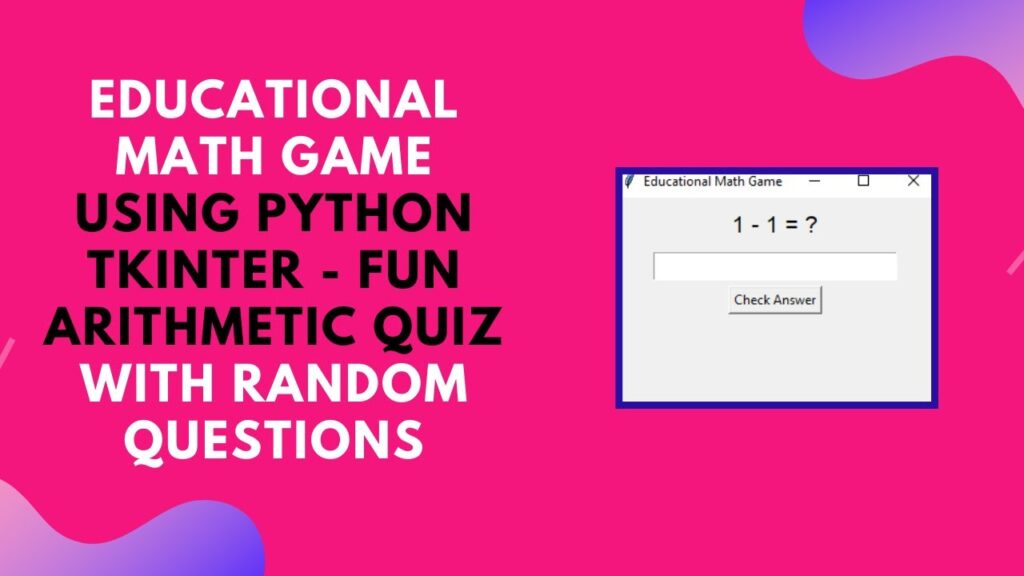
Looking for an interactive way to practice math? In this tutorial, we’ll create a fun educational math game using Python and Tkinter. This simple GUI-based quiz app generates random math problems and checks the user’s answers instantly, making learning engaging and effective for kids and beginners.
By the end of this tutorial, you’ll have a fully functional math quiz app that can be expanded with more features. Let’s get started! 🚀
What You’ll Learn
✔ How to generate random math problems dynamically 🔢
✔ Implementing user input and validation in Tkinter 🎯
✔ Updating the UI based on correct or incorrect answers ✅❌
✔ Creating interactive buttons and labels for a smooth experience 🎨
✔ Enhancing logical thinking and problem-solving with Python 🧠
Step 1: Import Required Modules
We’ll use tkinter for creating the GUI and random for generating math problems dynamically.import tkinter as tk
import random
Step 2: Generate Random Math Questions
The function generate_question() creates random math expressions using addition, subtraction, and multiplication. It updates the question label dynamically.
def generate_question():
    global answer
    num1 = random.randint(1, 10)
    num2 = random.randint(1, 10)
    operation = random.choice(["+", "-", "*"])

    if operation == "+":
        answer = num1 + num2
    elif operation == "-":
        answer = num1 - num2
    else:
        answer = num1 * num2

    question_label.config(text=f"{num1} {operation} {num2} = ?")
Step 3: Validate the User’s Answer
When the user submits an answer, check_answer() compares it with the correct answer and updates the UI accordingly.
def check_answer():
    user_answer = entry.get()
    if user_answer.isdigit() and int(user_answer) == answer:
        result_label.config(text="Correct!", fg="green")
    else:
        result_label.config(text=f"Wrong! Answer: {answer}", fg="red")

    entry.delete(0, tk.END)  # Clear input field
    generate_question()  # Generate a new question
Step 4: Create the GUI Interface
Using Tkinter, we create the main window, labels, input field, and button for a user-friendly experience.
# Create the main window
root = tk.Tk()
root.title("Educational Math Game")
root.geometry("300x200")

# Display math question
question_label = tk.Label(root, text="", font=("Arial", 16))
question_label.pack(pady=10)

# Input field for answer
entry = tk.Entry(root, font=("Arial", 14))
entry.pack()

# Button to check answer
check_button = tk.Button(root, text="Check Answer", command=check_answer)
check_button.pack(pady=5)

# Label to display result
result_label = tk.Label(root, text="", font=("Arial", 14))
result_label.pack()

# Generate the first question
generate_question()

# Run the Tkinter event loop
root.mainloop()
How It Works 🎮
🔹 A random math question is displayed (addition, subtraction, or multiplication).
🔹 User enters an answer in the input field and clicks “Check Answer”.
🔹 If the answer is correct, a green “Correct!” message appears.
🔹 If the answer is wrong, the correct answer is displayed in red.
🔹 A new math problem is automatically generated after each attempt.
Final Output: Interactive Math Quiz Game
When you run the script, you’ll see a simple and engaging math quiz interface like this:
🖥 [Math Question]
📩 [User Input Field]
✅ [Check Answer Button]
🎯 [Correct / Wrong Message]
This creates a seamless learning experience that makes math practice fun for kids and beginners! 🎓
Watch the Full Tutorial
For a step-by-step video guide, check out the YouTube tutorial:
Download the Full Code
Access the complete source code on GitHub:
🔗 GitHub – Educational Math Game
Conclusion
In this tutorial, we built an interactive math game using Python and Tkinter. This project is a great way to practice arithmetic while exploring GUI development in Python. 🚀
💡 Next Steps:
✔ Add division-based problems ➗
✔ Implement difficulty levels (easy, medium, hard) 🔥
✔ Introduce a score system and timer ⏳
Did you enjoy this tutorial?
💡 Like this post
💬 Share your thoughts in the comments
🔔 Subscribe for more Python projects!
🚀 Happy Coding! 🧮✨