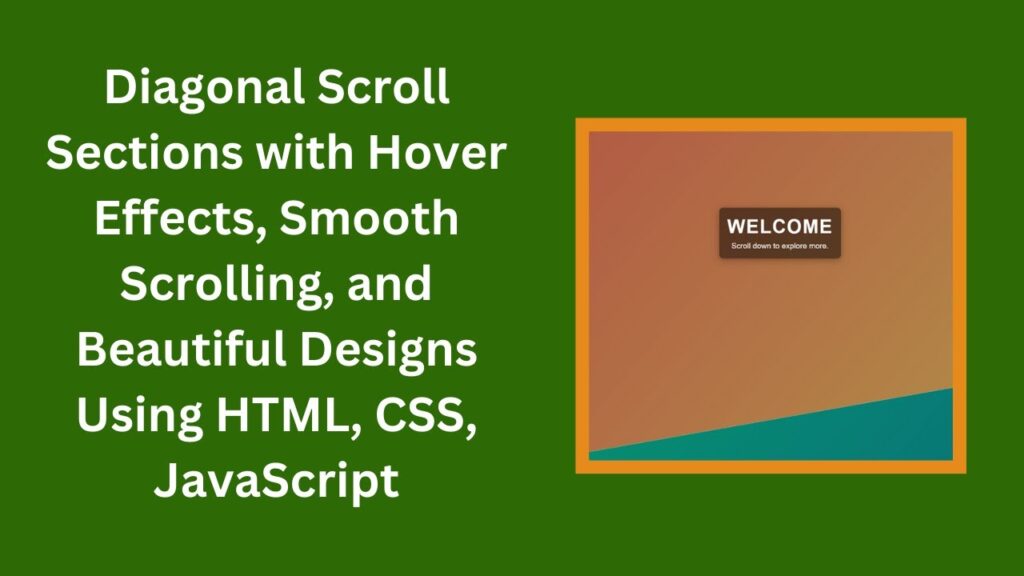
Adding visually appealing scroll effects can enhance the user experience and make your website more engaging. In this tutorial, we’ll walk you through how to create stunning diagonal scroll sections using HTML, CSS, and JavaScript. These sections will feature smooth scrolling, vibrant gradient backgrounds, and interactive hover effects to make your content stand out.
🔹 What You’ll Learn
✅ How to create diagonal sections with CSS transformations 🖥️
✅ Styling sections with vibrant gradient backgrounds 🎨
✅ Implementing hover effects and content animations for a polished look ⬇️
✅ Adding smooth scrolling for seamless navigation 🌟
✅ Using scroll snapping for a better user experience 🎯
🌟 Step-by-Step Guide
1️⃣ Setting Up the HTML Structure
We’ll start by creating a simple HTML structure with multiple sections:
<!DOCTYPE html>
<html lang="en">
<head>
    <meta charset="UTF-8">
    <meta name="viewport" content="width=device-width, initial-scale=1.0">
    <title>Diagonal Scroll Sections</title>
    <link rel="stylesheet" href="styles.css">
</head>
<body>
    <div class="scroll-container">
        <div class="section"><div class="content"><h1>Welcome</h1><p>Scroll down to explore more.</p></div></div>
        <div class="section"><div class="content"><h1>About Us</h1><p>We create amazing designs.</p></div></div>
        <div class="section"><div class="content"><h1>Services</h1><p>Discover what we offer.</p></div></div>
        <div class="section"><div class="content"><h1>Portfolio</h1><p>Check out our work.</p></div></div>
        <div class="section"><div class="content"><h1>Contact</h1><p>Get in touch with us.</p></div></div>
    </div>
</body>
</html>
2️⃣ Adding CSS for Diagonal Sections
To create the diagonal effect, we use the transform: skewY(-10deg); property. We also add a hover effect to make the sections more interactive.
body, html {
    margin: 0;
    padding: 0;
    overflow-x: hidden;
    font-family: Arial, sans-serif;
}

.section {
    width: 100vw;
    height: 100vh;
    display: flex;
    justify-content: center;
    align-items: center;
    font-size: 2rem;
    color: white;
    position: relative;
    transform: skewY(-10deg);
    transform-origin: top left;
    overflow: hidden;
    transition: background 0.5s ease;
}

.section::before {
    content: '';
    position: absolute;
    top: 0;
    left: 0;
    width: 100%;
    height: 100%;
    background: rgba(0, 0, 0, 0.3);
    z-index: -1;
}

.section:nth-child(1) { background: linear-gradient(135deg, #FF6F61, #FFD166); }
.section:nth-child(2) { background: linear-gradient(135deg, #06D6A0, #118AB2); }
.section:nth-child(3) { background: linear-gradient(135deg, #073B4C, #EF476F); }
.section:nth-child(4) { background: linear-gradient(135deg, #6A4C93, #FFCA3A); }
.section:nth-child(5) { background: linear-gradient(135deg, #3A86FF, #8338EC); }

.content {
    transform: skewY(10deg);
    text-align: center;
    padding: 20px;
    background: rgba(0, 0, 0, 0.5);
    border-radius: 10px;
    box-shadow: 0 4px 15px rgba(0, 0, 0, 0.3);
    transition: transform 0.3s ease, box-shadow 0.3s ease;
}

.content:hover {
    transform: skewY(10deg) scale(1.1);
    box-shadow: 0 8px 25px rgba(0, 0, 0, 0.5);
}

html { scroll-behavior: smooth; }

.scroll-container {
    scroll-snap-type: y mandatory;
    overflow-y: scroll;
    height: 100vh;
}

.section { scroll-snap-align: start; }
3️⃣ Adding Smooth Scrolling with JavaScript
We’ll use JavaScript to enhance the scrolling experience by snapping to sections when scrolling.
document.addEventListener('DOMContentLoaded', () => {
    const sections = document.querySelectorAll('.section');
    let isScrolling;

    window.addEventListener('scroll', () => {
        window.clearTimeout(isScrolling);

        isScrolling = setTimeout(() => {
            const scrollY = window.scrollY;
            const windowHeight = window.innerHeight;

            sections.forEach((section, index) => {
                const sectionTop = section.offsetTop;
                const sectionHeight = section.offsetHeight;

                if (scrollY >= sectionTop - windowHeight / 2 && scrollY < sectionTop + sectionHeight - windowHeight / 2) {
                    window.scrollTo({
                        top: sectionTop,
                        behavior: 'smooth'
                    });
                }
            });
        }, 100);
    });
});
🎬 Final Touch
With these steps completed, you now have a fully functional scrolling webpage with diagonal sections and smooth animations. This effect can be used to create engaging landing pages, portfolios, and more!
🎥 Watch the Video Tutorial
Want to see this in action? Watch our detailed step-by-step video tutorial on YouTube:
💾 Get the Complete Code on GitHub
Download the full source code here:
🔗 GitHub Repository
📌 Final Thoughts
By implementing diagonal scrolling sections, you can create an eye-catching and dynamic experience for your users. Experiment with different colors, animations, and layouts to make it unique to your website.
If you enjoyed this tutorial, don’t forget to like 👍, comment 💬, and subscribe 🔔 to Madras Academy for more web development tutorials! 🚀
#HTML #CSS #JavaScript #WebDesign #ScrollingEffects #WebDevelopment #FrontendDevelopment #InteractiveDesign #WebDesignInspiration 🎉