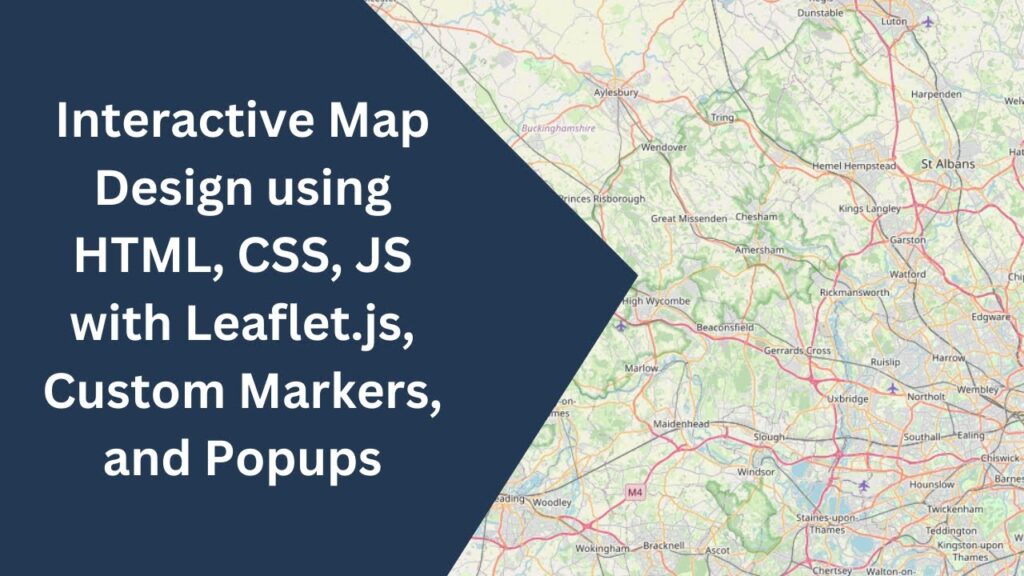
Adding an interactive map to your website can greatly enhance user engagement and functionality. Whether you’re showcasing locations, guiding users, or simply adding a cool feature, an interactive map is a great addition. In this tutorial, we’ll explore how to create a fully interactive map using HTML, CSS, and JavaScript, with the help of Leaflet.js, a powerful open-source mapping library. Let’s get started! 🌍📍
What You’ll Learn
✅ How to embed an interactive map with Leaflet.js 🌍
✅ Adding custom location markers with popups 🗺️
✅ Styling map markers for a professional look 🎨
✅ Implementing zoom and pan controls 🔍
✅ Enhancing the map with hover effects and marker animations ✨
Step 1: Setting Up the Basic HTML Structure
First, create an HTML file and include the Leaflet.js library for map integration.
<!DOCTYPE html>
<html lang="en">
<head>
  <meta charset="UTF-8">
  <meta name="viewport" content="width=device-width, initial-scale=1.0">
  <title>Interactive Map Design</title>
  <link rel="stylesheet" href="https://unpkg.com/leaflet/dist/leaflet.css" />
  <style>
    body, html {
      margin: 0;
      padding: 0;
      height: 100%;
    }
    #map {
      height: 100vh;
      width: 100%;
    }
  </style>
</head>
<body>
  <div id="map"></div>
  <script src="https://unpkg.com/leaflet/dist/leaflet.js"></script>
</body>
</html>
This code sets up a full-screen map container.
Step 2: Initializing the Map with JavaScript
Now, let’s add JavaScript to initialize the map and set a default location.
<script>
var map = L.map('map').setView([51.505, -0.09], 13); // Default view: London
L.tileLayer('https://{s}.tile.openstreetmap.org/{z}/{x}/{y}.png', {
attribution: '© OpenStreetMap contributors'
}).addTo(map);
</script>Step 3: Adding Location Markers with Popups
To make the map interactive, we’ll add multiple location markers with popups.
var marker1 = L.marker([51.505, -0.09]).addTo(map);
marker1.bindPopup('<b>London</b><br>Capital city of England.');

var marker2 = L.marker([40.7128, -74.0060]).addTo(map);
marker2.bindPopup('<b>New York</b><br>The city that never sleeps.');

var marker3 = L.marker([48.8566, 2.3522]).addTo(map);
marker3.bindPopup('<b>Paris</b><br>The city of lights.');
This code adds markers for London, New York, and Paris, each with a description.
Step 4: Styling the Map and Markers with CSS
We can make our markers look more attractive with some CSS:
.leaflet-marker-icon {
  border-radius: 50%;
  border: 2px solid #4d5bf9;
  background-color: #fff;
  box-shadow: 0 2px 5px rgba(0, 0, 0, 0.3);
  transition: transform 0.3s ease;
}

.leaflet-marker-icon:hover {
  transform: scale(1.3);
}
This makes the markers stand out and adds a hover effect for better user interaction.
Final Result
By combining all these steps, you now have a fully interactive map with: ✅ Multiple location markers
✅ Informative popups
✅ Smooth zooming and panning
✅ Stylish marker effects
Watch the Video Tutorial 🎥
Check out the full tutorial on YouTube:
Get the Source Code on GitHub 📝
If you found this tutorial helpful, don’t forget to like, comment, and subscribe to Madras Academy for more exciting web development tutorials! 🚀
#HTML #CSS #JavaScript #WebDevelopment #MapDesign #LeafletJS #InteractiveDesign #Tutorial #FrontendDevelopment #WebDesign #TechTutorial 🌍🚀